
A job plan looks great on paper. Phases, dates, hours, all lined up. Then you have to work out who's actually doing it.
That's where most studios lose a morning. You check who's free, try not to overload your best designer, remember that someone's on leave in December, and book it all in by hand. Then the client moves the presentation by a week and you get to do it all again.
This is where AI can take a lot off your plate. Using the Streamtime MCP, we took a job plan and turned it into a real schedule, then kept it right as things changed. Here are five workflows, the prompts we used, and what to watch for.
What's the Streamtime MCP?
The MCP connects your Streamtime account to an AI assistant like Claude, ChatGPT or Copilot. You ask in plain English, and it reads and updates your jobs, schedule and to-dos. It only sees and does what you can already see and do in Streamtime.
The job we're scheduling
To keep it real, we used a fictional job. Cardamom & Milk is a body care brand launching a new serum range. The job is already set up in Streamtime, with five phases plus a retail rollout, but every task is planned by role (designer, account manager and so on) rather than by person. Nobody's actually booked in yet.
Workflow 1: Swap roles for real people
The first job is deciding who does what. Normally that means checking everyone's workload one by one. Instead, we asked Claude to do the checking:
On the Cardamom & Milk job, every task is currently planned by role. Swap each role for real team members. For each role, check who has capacity across the task dates, and pick the best fit. Only use actual team members, not placeholder or freelancer users. If one person would end up carrying a heavy load across the job, split the work between two people. Split it by type of work, so each person owns related tasks, rather than dividing individual tasks down the middle. Nobody should join late in the job with no context. Show me the proposed assignments and your reasoning first, then make the changes once I've approved them.
Claude came back with a table: each role, the hours on the job, who it would pick and why. The design work was too much for one person, so it split it between two designers by type of work, and explained why it left out the designer with the busiest November.
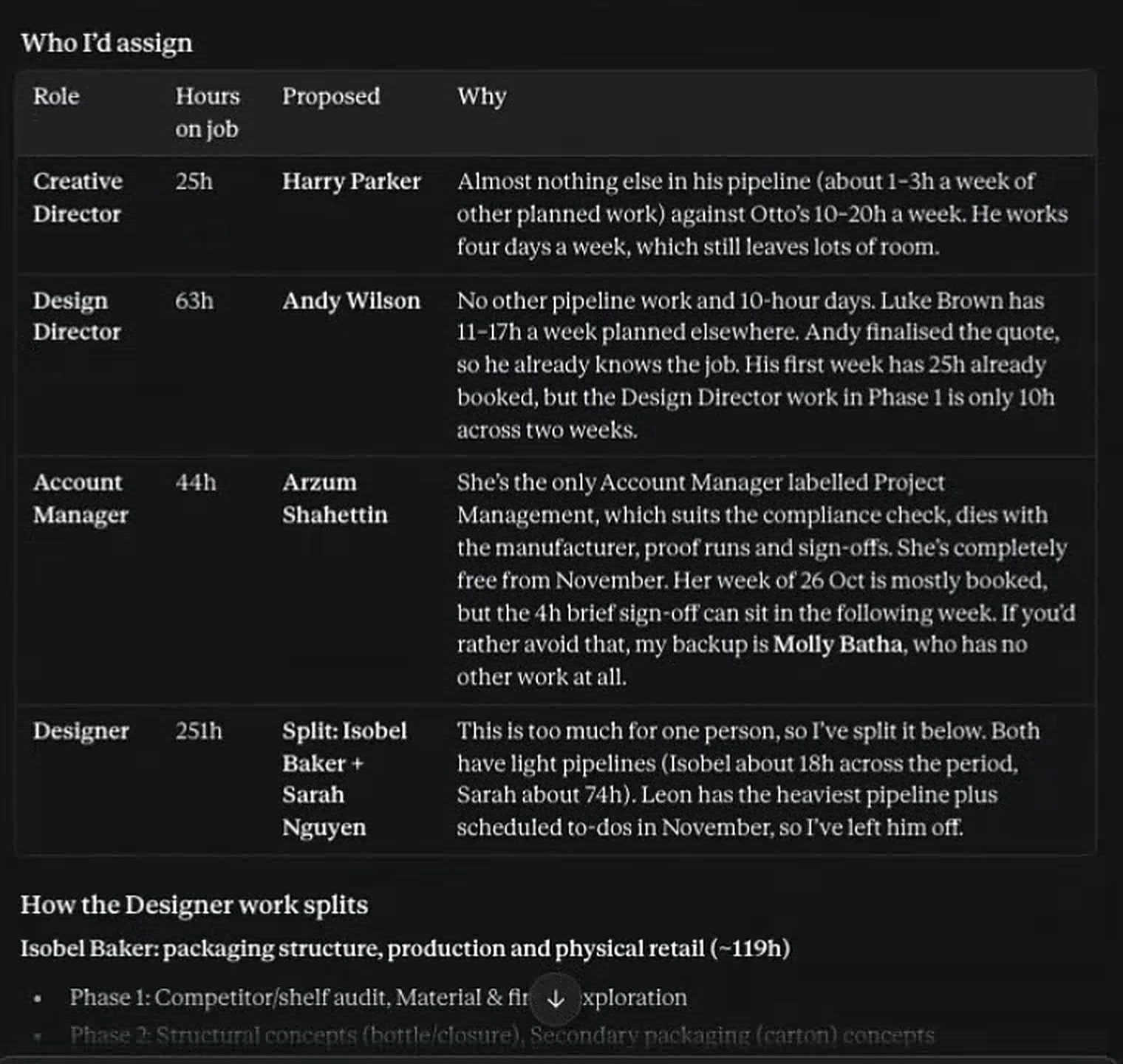
Two parts of that prompt are worth stealing. The first is the rule about late joiners. If someone only picks up work in phase five, they spend half their time catching up. Asking Claude to give them earlier, connected tasks means everyone on the job has context from the start.
The second is the last line. Asking for the plan and the reasoning before anything changes keeps you in charge. It's a good rule of thumb for all of this: AI is a tool to direct, not an oracle to consult.
Workflow 2: Build the schedule
With people assigned, the next step is booking the actual time:
Now schedule the Cardamom & Milk job. Create to-dos for each assigned person across their task dates, working around what they're already booked on so nobody goes over capacity. Keep it realistic: no more than 3-4 hours a day on this job for any one person. Nothing should be scheduled during our Christmas closure, 21 December to 1 January. When you're done, give me a week-by-week summary of who's working on what, and flag anyone who's over capacity in any week.
This one took about four minutes, working in batches and checking in before each one. You don't have to sit and watch. Start it, go and answer an email, and come back to a schedule that's already built.
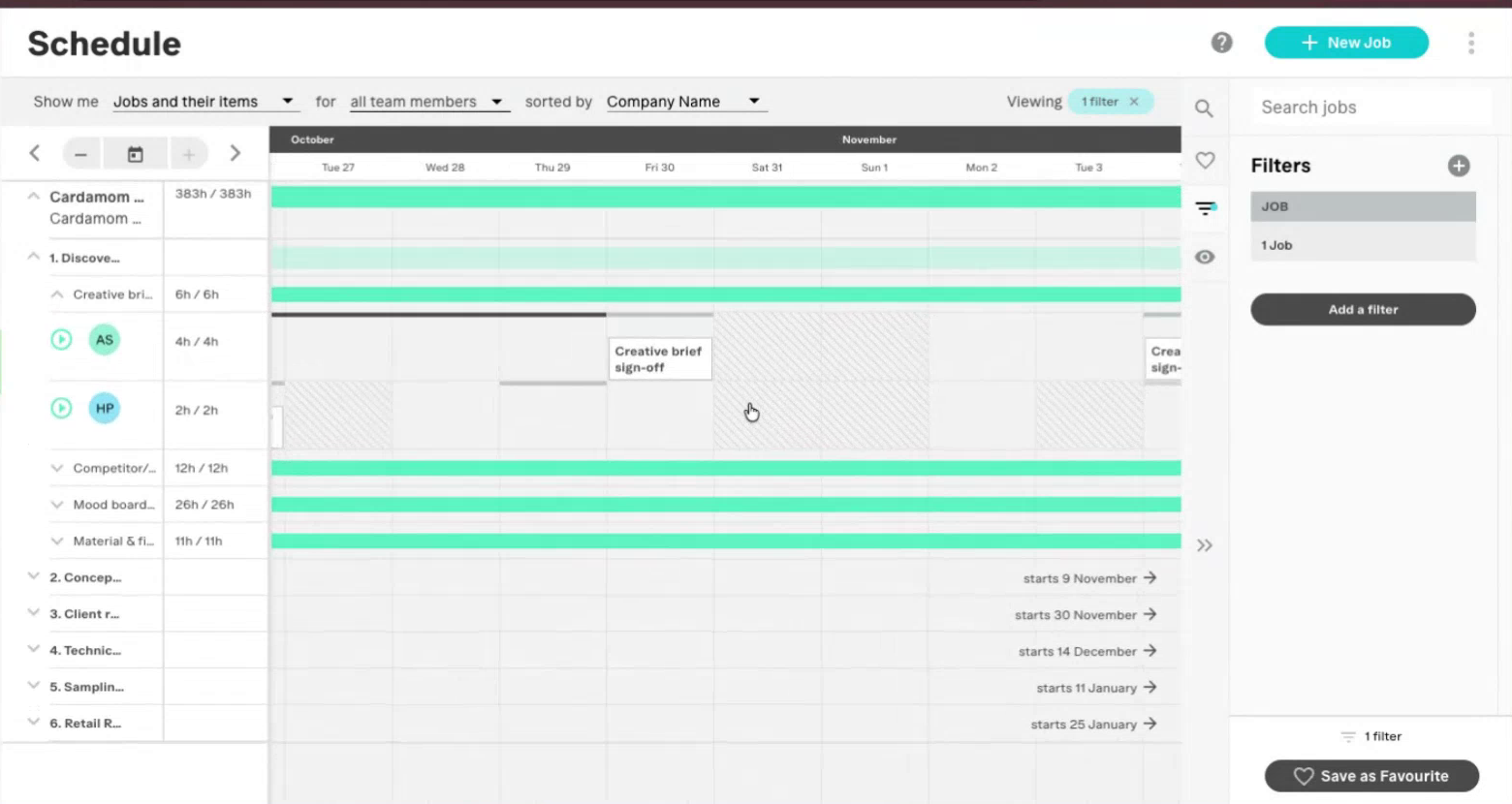
The daily cap is the part we'd encourage every studio to copy. Nobody wants to spend eight hours a day on one project, and your team has other jobs too. Capping it at three or four hours keeps some variety in their week and leaves room for everything else, so nobody ends up working late to fit it all in.
The bigger win is that your team can see what their week looks like before they get there. And the time is set aside for the job, so it doesn't get quietly booked by someone else. It doesn't need to be perfect, either. You can always move it later.
Workflow 3: When the client moves the goalposts
The concept presentation slips a week. Maybe the work isn't quite ready, or the client can't make it. Either way, everything after it needs to move:
The client has pushed back the concept presentation on Cardamom & Milk by a week. Move 'Client presentation of concepts' to start one week later, and shift everything that comes after it by a week too. Keep our Christmas closure, 21 December to 1 January, clear. Move the milestones and reschedule everyone's to-dos to match. Then tell me the new final sign-off date, and whether the change leaves anyone overbooked.
One week sounds small, but this one landed right before Christmas. Because the studio's closed over the break, the production phase couldn't just shift by a week. It had to start in January. Claude worked that out, moved the milestones and to-dos with the dates, and came back with the answer: final sign-off moves to Friday 29 January, and nobody's overbooked.
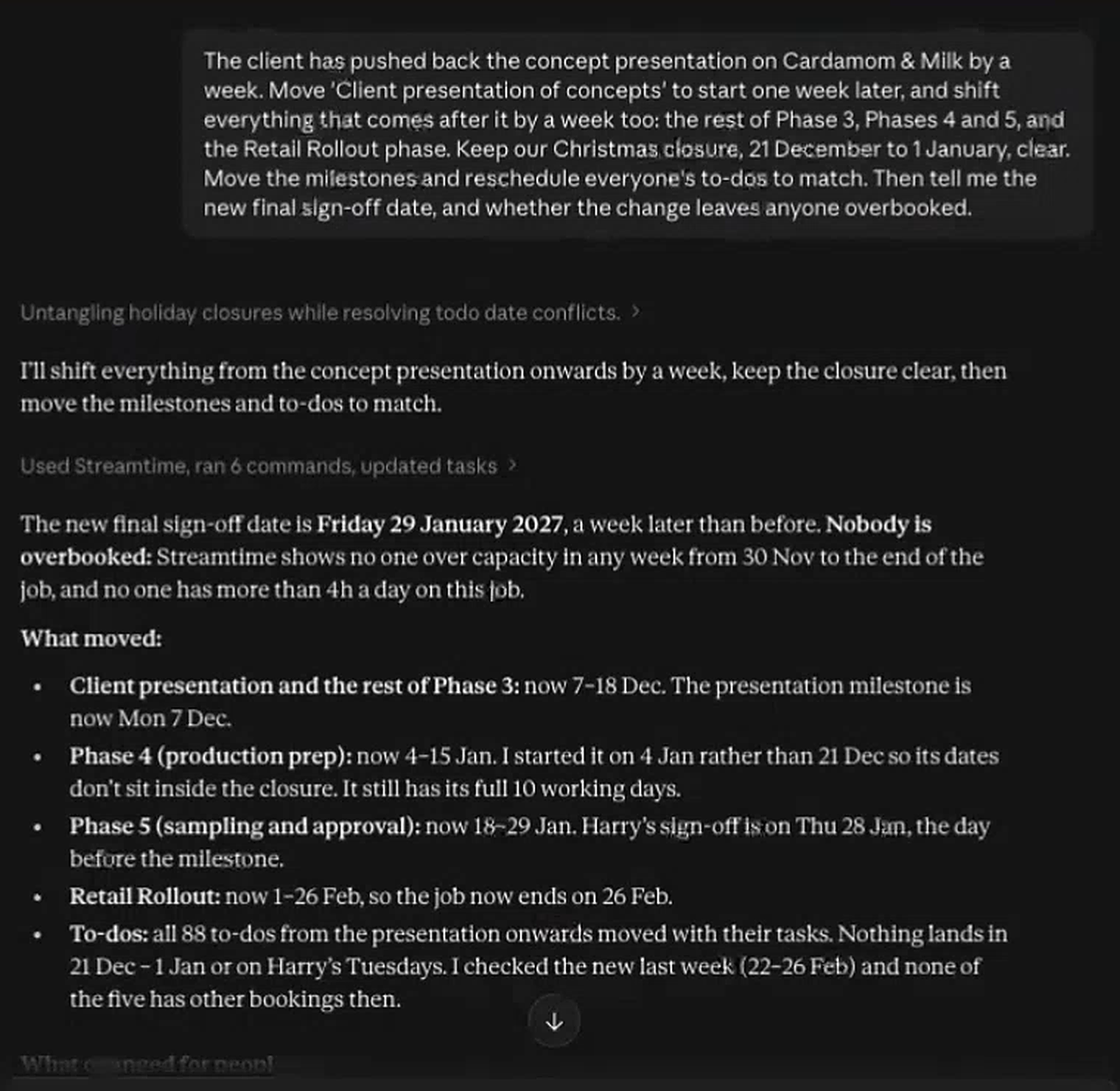
That's a couple of hours of reshuffling done in one prompt.
You don't have to move everything, either. Sometimes the client's deadline moves but you still want the team to do the work when it was originally booked. Just tell Claude to move the timeline and leave the to-dos where they are.
Workflow 4: Someone needs unexpected leave
Nobody plans for this one. A designer needs the week of 23 November off, at short notice. Two things need to happen: their work has to go to someone else, and their week has to be blocked so nothing new gets booked in.
[Team member] needs to take the week of 23 November off unexpectedly. Find their to-dos on the Cardamom & Milk job that week and move them to someone else in the same role who has capacity. Only use actual team members, not placeholder or freelancer users. Rebalance the planned hours on the job so they reflect who's actually doing the work now. Block out their week too with personal to-dos for 'leave', so they don't show as available for anything else.
Claude moved the work to the other designer already on the job, because they already knew the concepts. It also explained why it didn't pick a freer designer with no context on the job. Then it rebalanced the planned hours, and booked the week as leave.
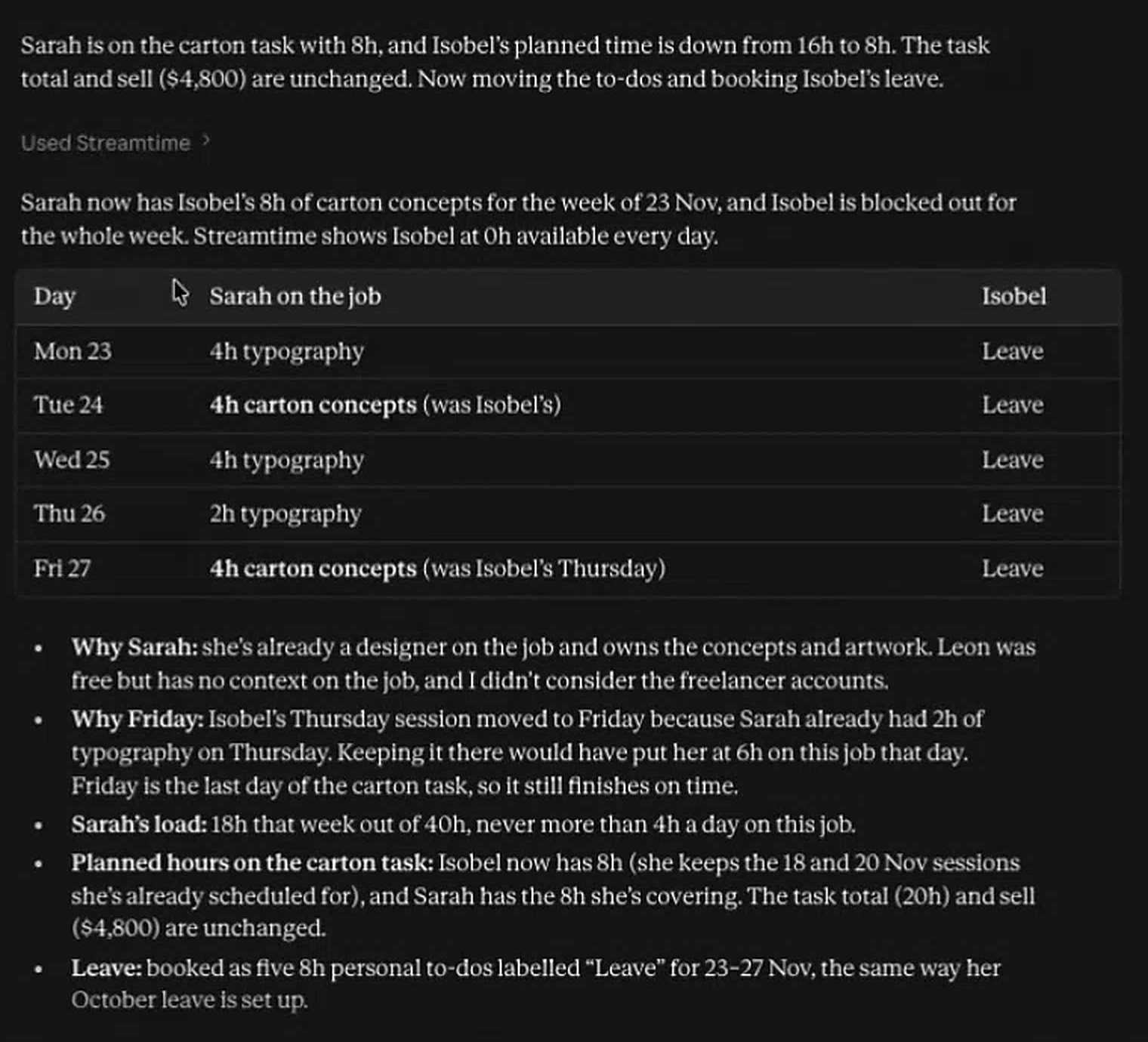
That last step is easy to forget, and it matters. If someone still looks free in Streamtime, someone else might book them for another job.
Workflow 5: Can we take on a new job?
So far we've looked at one job on its own. Real life is messier. A new client wants a packaging job about half the size of Cardamom & Milk, starting 11 January and running for six weeks. Can you say yes?
A new client wants a packaging job similar in scope to Cardamom & Milk, but around half the hours. It would start on 11 January and run for about six weeks. Based on the roles and hours on the Cardamom & Milk job, do we have capacity for it? Check availability by role across that window, including what's already scheduled and in the pipeline. Tell me which roles are fine, which are tight, and what we'd need to move or bring in to make it work.
Claude used the existing job as a template for the estimate, then checked every role against what's already booked and in the pipeline. The answer: yes, there's capacity, but design is the one to watch. It suggested three designers instead of two, and named the one with the most free time as the natural lead.
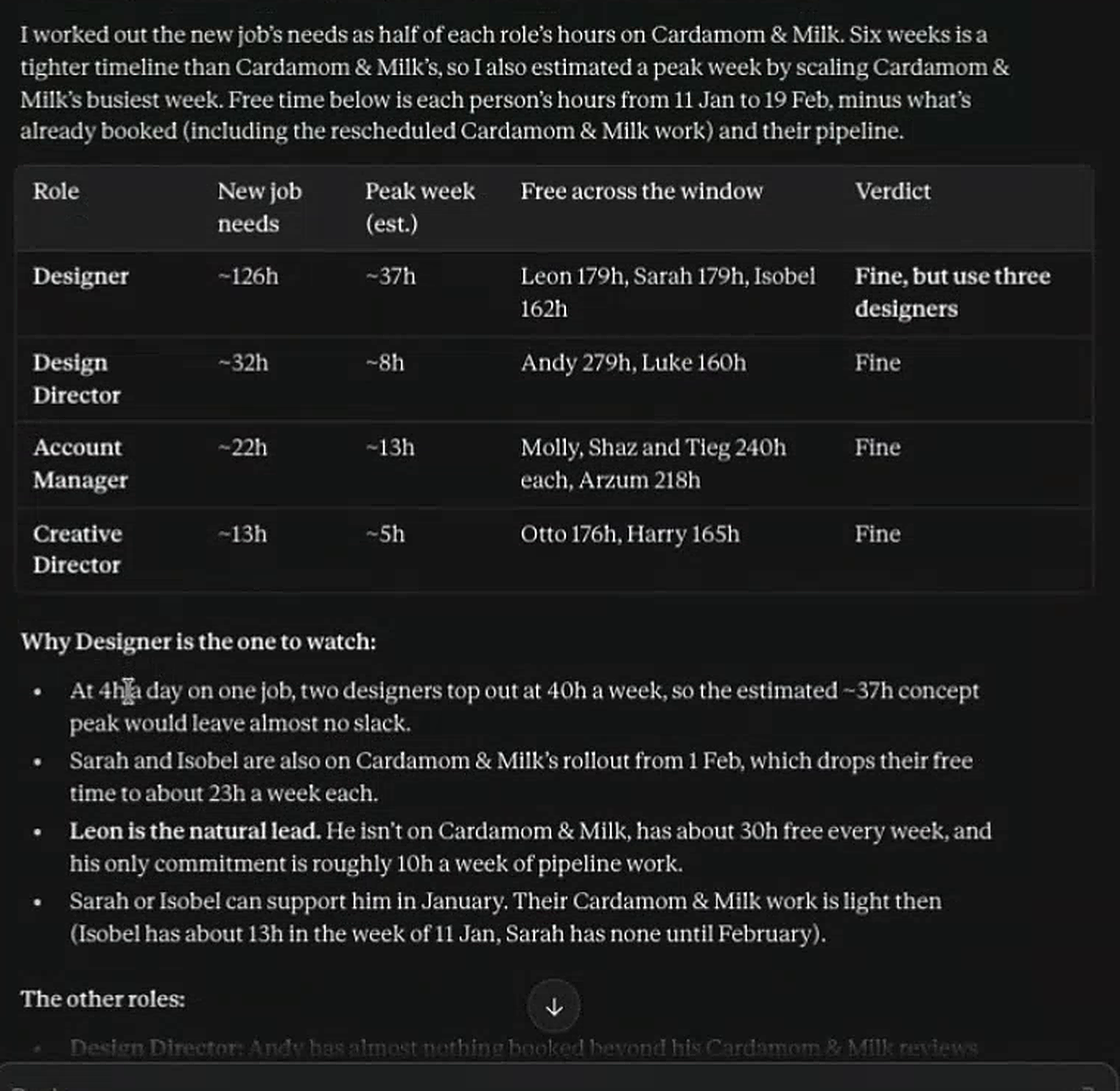
It also remembered the four-hours-a-day limit from the earlier prompt and applied it to the new job without being asked. You get a confident yes or no, based on your real schedule, not a gut feel.
Tips to get more out of it
Write your studio's rules into the prompt. Daily caps, no late joiners, no freelancers, your Christmas closure. Claude follows the rules you give it, and it carries them into later prompts in the same chat.
Ask for the plan before the change. "Show me first, then make the changes once I've approved them" is the most useful line in this whole post.
Track leave in Streamtime. Claude can only work around leave it can see. The more of your team's time that lives in Streamtime, the better its answers get.
Let it run in the background. Bigger scheduling prompts can take a few minutes. Set up desktop notifications so you get pinged when it's done, and get on with something else.
Keep a human in charge. Watch what it's doing, check the reasoning, and step in if something looks off. It's your studio and your call.
Try it yourself
The Streamtime MCP works with Claude, ChatGPT and Copilot, and setup takes a few minutes. Start with the connection guide, then grab every prompt from this post in our MCP workflow series.
Want to see it working on your own schedule? Book 20 minutes with our team.