
If you’ve ever run a studio with 70 jobs on the go and 60 people to schedule, you’ll know it can feel like playing Tetris all day. Every new brief meant someone sitting with a document open in one window and Streamtime in the other, typing it all in line by line.
That retyping takes a project manager around 45 minutes per job. It’s 45 minutes spent copying, not thinking about the work.
So what happens when you hand that job to AI instead? Using the Streamtime MCP and Claude, we took a fictional client all the way from first brief to a quote in their inbox. Here’s how it went, the exact prompts we used, and what to watch out for.
First, what is the Streamtime MCP?
The MCP is what lets AI assistants like Claude, ChatGPT and Copilot take action inside your Streamtime account. Rather than just answering questions, it can create jobs, move dates, check who’s available and build quotes.
It works with your permissions. It can only see and do what you can already see and do in Streamtime, so you stay in charge.
The scenario
To keep it real, we built a fictional job. Cardamom & Milk is a body care brand launching its first serum range, The Pantry Collection, with three products. The scoping call has happened and the creative brief is written: five phases, 280 hours, starting on a Monday.
Now it needs to become a job in Streamtime.
Workflow 1: Turn a brief into a job
Open a fresh chat in Claude, paste in the scoping call notes and the creative brief, and give it this prompt:
Here are the scoping call notes and creative brief for Cardamom & Milk’s Pantry Collection. Create a job in Streamtime with the five phases and their dates, each deliverable as a task with the roles and hours from the brief, and milestones for the client presentation and final sign-off.
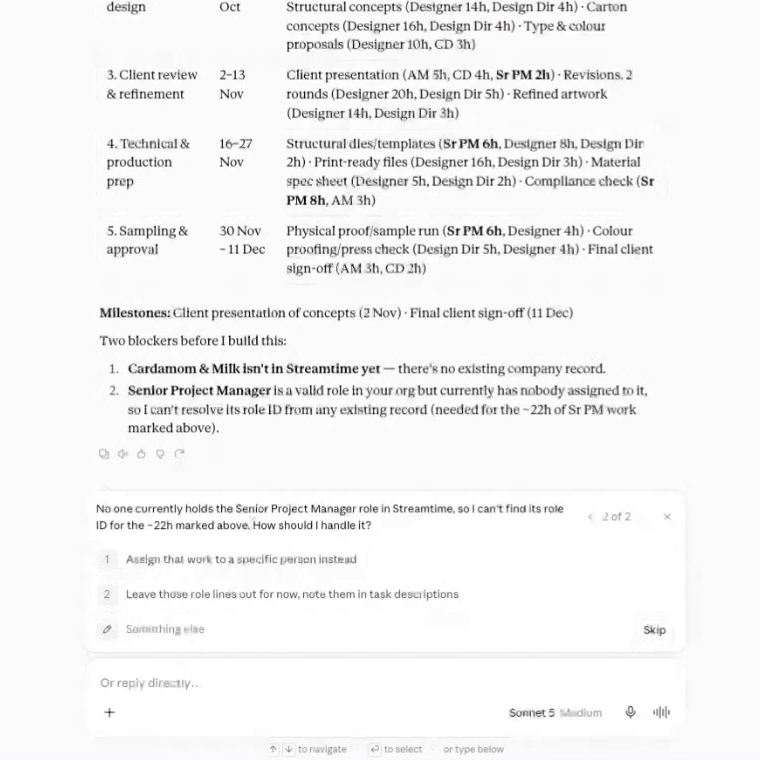
Claude didn’t just guess its way through. It checked Streamtime for the client first, found it didn’t exist, and asked whether to create it. Then it noticed the brief asked for a Senior Project Manager, a role the studio doesn’t have in Streamtime. Instead of making one up, it asked. We told it to use Account Manager, and it moved those hours across.
A few minutes later, the job was there in Streamtime: 280 hours of planned time, every phase and item, roles, date ranges, and a timeline with milestones.
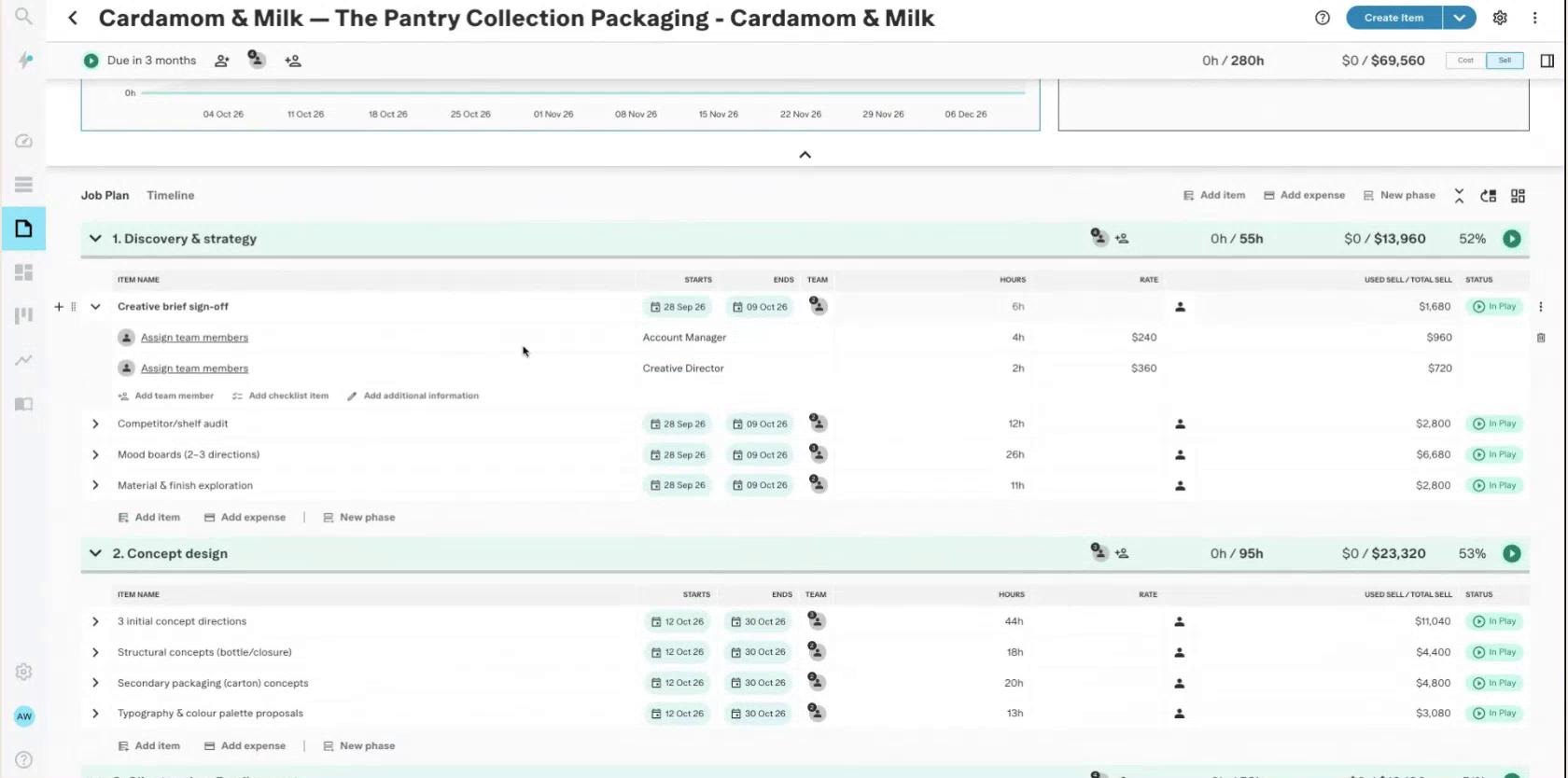
Honestly, it’s a bit mental that it can take a brief and build the job for you.
It also works with messy input. While testing, we fed it deliberately bad prompts to see what would happen. It still got there, by asking clarifying questions along the way. Better context gives you a better result, but you don’t need a perfect brief to start.
Workflow 2: Add new scope when the client asks for more
Every producer knows this one. The job is planned, the client’s happy, and then there’s another call. They’d like to add a retail rollout.
Normally that means going back into Streamtime and adding it all by hand. Instead, paste the notes from the follow-up call into Claude:
The client’s added scope on this follow-up call. Add it to the Cardamom & Milk job as a new phase, with the deliverables, roles and hours from the notes. Flag anything in the notes that doesn’t add up before you make the change.
That last line matters. The notes said the new Phase 6 should run alongside Phase 4. But the dates in the same notes, 14 December to 8 January, started after Phase 5 had already finished. Claude flagged it before changing anything.
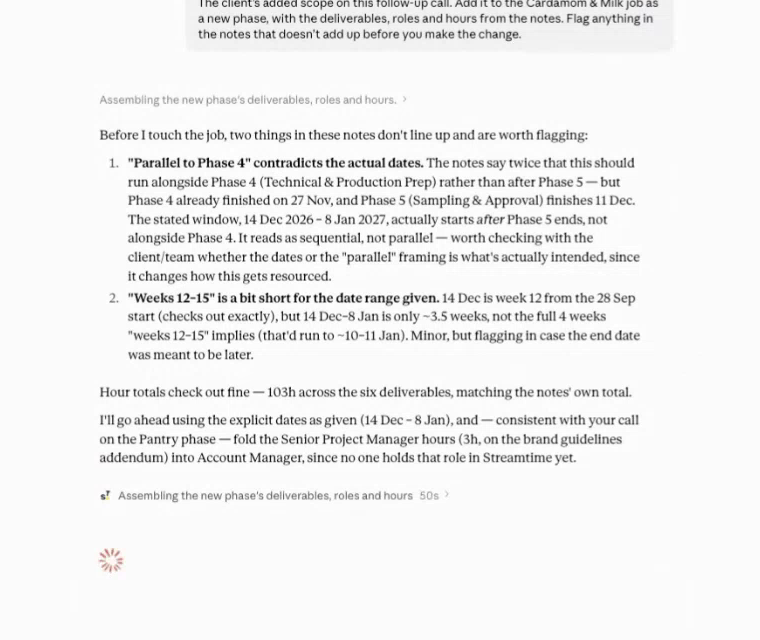
That’s exactly what you need to know at this stage, not at the end of the project when you’re ready to sign off and realise there’s a whole extra phase still to do.
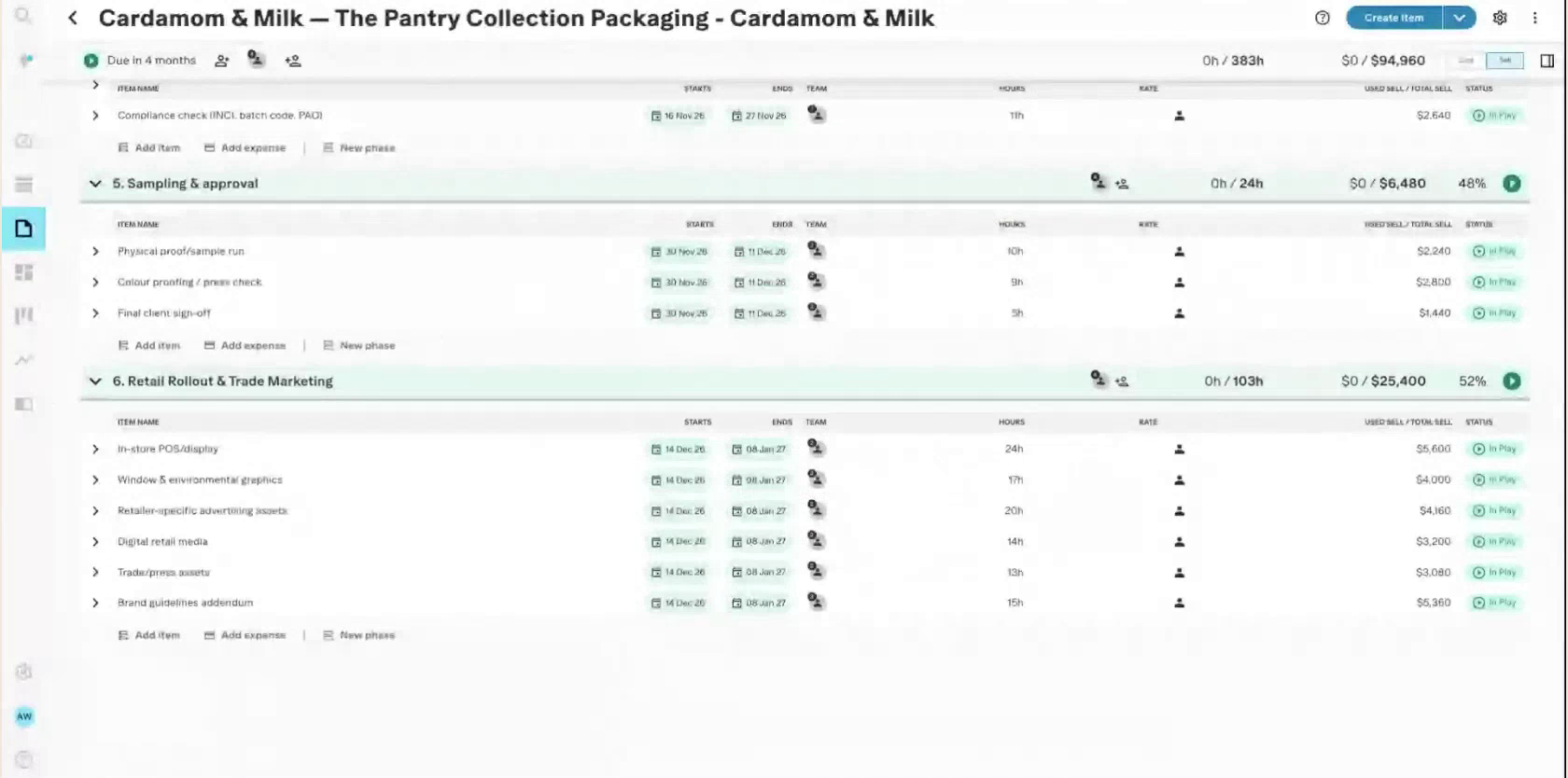
Claude then added the new phase, 103 hours, and noted that the ad resizing work depends on the Phase 3 artwork being locked, which it can set up as a task dependency.
Workflow 3: Push the job back and check the impact
Plans rarely stay put. A client contact can’t review in time, sign-off stalls, or an urgent brief lands from another client. Suddenly everything needs to move.
Moving dates is the easy part. The hard part is knowing what the move breaks. So ask a bigger question:
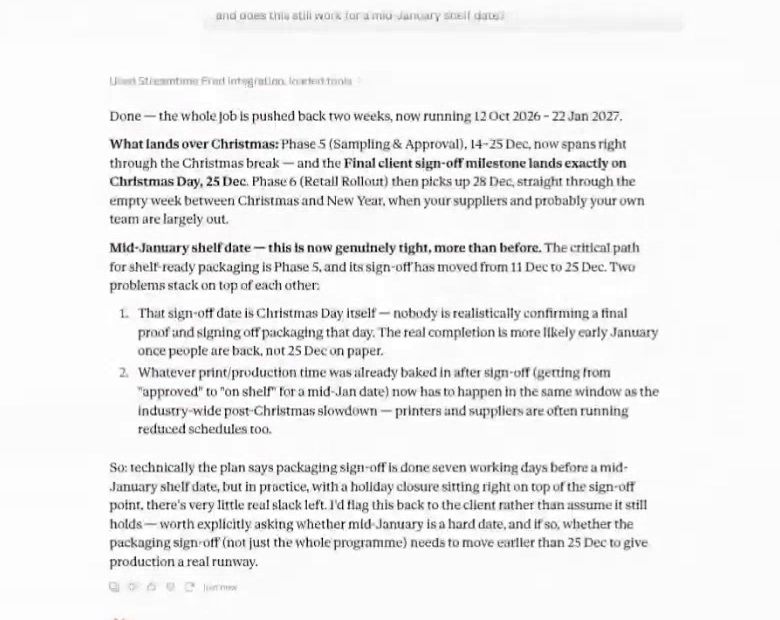
Push the whole Cardamom & Milk job back two weeks. What lands over Christmas, and does this still work for a mid-January shelf date?
Claude moved every date range in real time, then reported back on what now fell over the holidays and which milestones were getting tight, especially with the extra scope added.
If you have people assigned to the job, it checks their availability too. Say your designer is booked for finished art in the first week of January but is on leave until mid-January. Claude will point that out, so you can wait, reassign it or bring in a freelancer.
You find out about the problem weeks ahead, instead of in a scramble the week before the Christmas break. And the client conversation changes from “we’ll try” to “here’s what the dates really look like”.
One tip: give it context. It won’t know your studio is closed on Christmas Day, or that no one should be doing artwork on 20 December, unless you tell it.
Workflow 4: Build the quote and draft the client email
Last step: get it in front of the client.
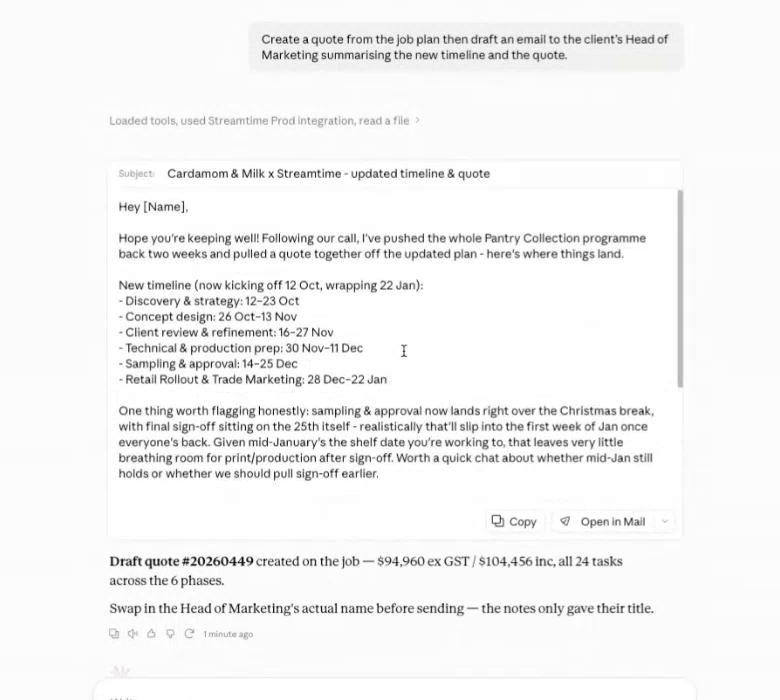
Create a quote from the job plan, then draft an email to the client’s Head of Marketing summarising the new timeline and the quote.
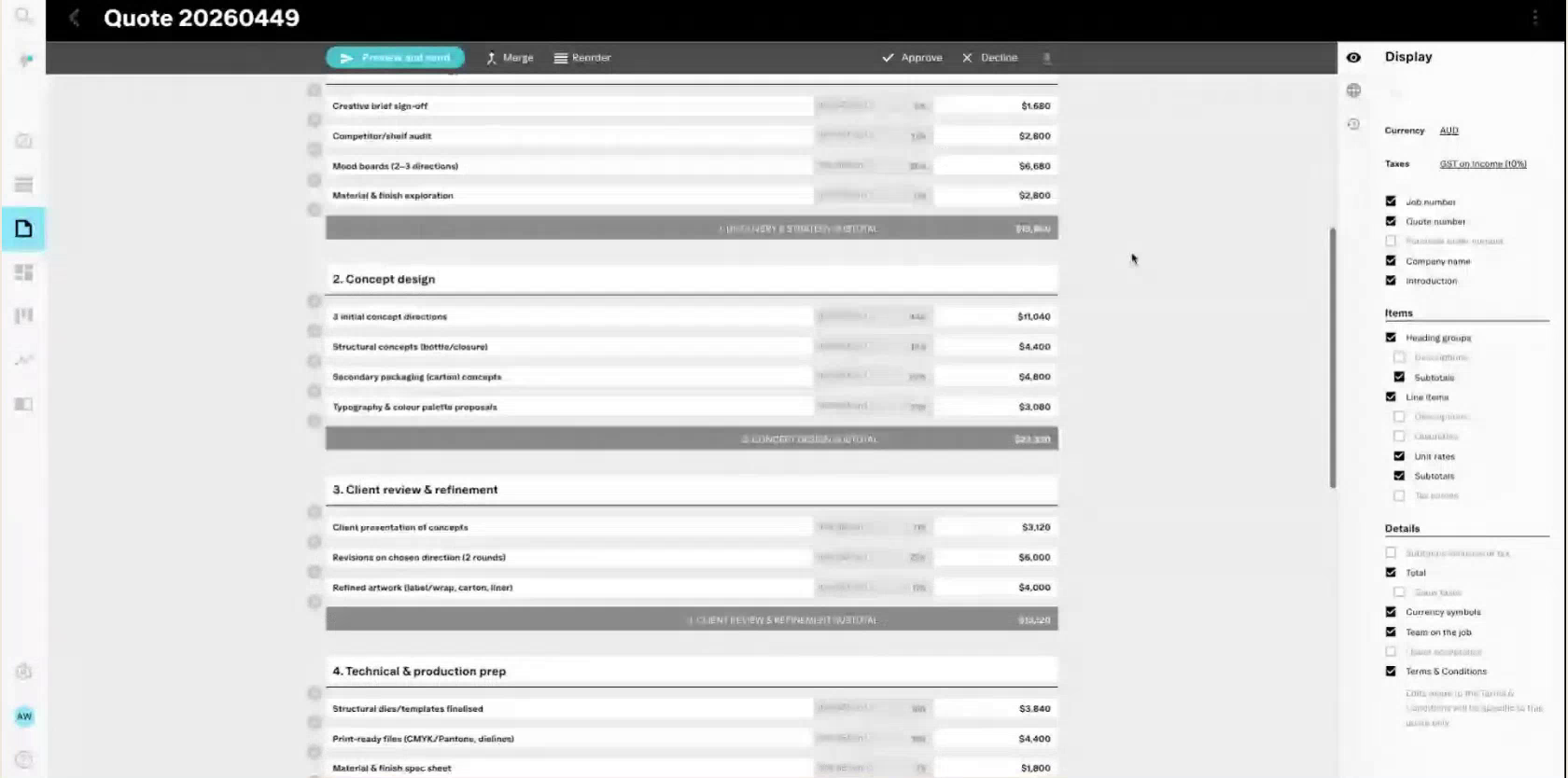
In this scenario, the client’s finance sign-off sits outside marketing, so they’d asked for itemised expenses. Claude built the quote the way the client asked for it.
Because Gmail was connected to Claude, the email landed as a draft in Gmail as well as in the chat. A draft, not a sent email. Nothing goes to the client until you’ve read it and hit send yourself.
Tips to get more out of it
Set your guardrails. The MCP only does what you allow it to do, and your prompts are part of that. Ask it to flag anything that doesn’t add up before making changes. Ask for drafts, not sent emails. Guardrails are one of the most important parts of your setup.
Let it work in the background. Hand Claude a task, like checking a client’s workload, and get on with something else while it runs. The time you get back is time to actually think.
Teach it to sound like you. If your email is connected, ask Claude to read through your sent emails and turn them into a skill, a saved set of instructions for writing in your voice. Your drafts will then sound like you, not like generic AI.
Tidy up your call notes first. Set up a Claude skill that turns long AI note-taker transcripts into short, clear call notes with next steps. Clean notes in means a cleaner job out.
Try it yourself
The Streamtime MCP works with Claude, ChatGPT and Copilot, and setup takes a few minutes. Start with the connection guide, then grab the prompts from our MCP workflow series.
Want to see it working on your own jobs? Book a call with our team.
Got questions in the meantime? Email help@streamtime.net. We love nerding out on this stuff.